Claude on Windows and macOS — setup with a LiteAI key
Connect Claude Code and Claude Desktop to Anthropic via LiteAI: env variables, settings.json, the desktop config path, MCP servers, and a quick key check (no VPN).
Anthropic ships Claude in at least two forms: the terminal CLI Claude Code and the desktop GUI app Claude Desktop (the same one formerly known as Anthropic Chat). Both hit the same API, but they read configuration from different files that live in different places on Windows and macOS. LiteAI supports both with the same sk-bf-… key — here's how to wire Claude Code and Claude Desktop in five minutes, with no VPN and no foreign bank card.
If you weren't sure what exactly Claude Code and Claude Desktop are, and how they differ from the browser chat — we break it down in the intro article. And if you want to run the terminal version inside VS Code — there's a dedicated guide.
What you'll need
- A current LiteAI API key in the
sk-bf-…format — buy Claude API tokens starting at $1 per 1M tokens. - One of two clients:
- Claude Code — terminal CLI, installed via npm, requires Node.js 18+.
- Claude Desktop — native app for Windows and macOS, downloaded from claude.ai/download.
- Any supported OS: Windows 10/11 (x64 or ARM) or macOS 11+ (Intel or Apple Silicon).
After installing the client you need exactly two things:
| Parameter | Value |
|---|---|
| Base URL | https://api.liteai.tech/anthropic |
| Auth header | x-api-key: sk-bf-… |
This is LiteAI's Anthropic-compatible endpoint: the same SDKs, the same SSE, the same messages format as the official API. Tool use in Claude Desktop works out of the box.
Part 1. Claude Code — wired up in 2 minutes
Claude Code is Anthropic's terminal agent. LiteAI plugs in via environment variables or settings.json. The steps are identical on Windows and macOS — only the path to the config file differs.
macOS / Linux — permanent config in ~/.claude/settings.json
mkdir -p ~/.claude
cat > ~/.claude/settings.json <<'JSON'
{
  "env": {
    "ANTHROPIC_BASE_URL": "https://api.liteai.tech/anthropic",
    "ANTHROPIC_AUTH_TOKEN": "sk-bf-...",
    "ANTHROPIC_MODEL": "claude-opus-4-8"
  }
}
JSON
After that, run claude from any terminal — LiteAI is picked up automatically.
Windows (PowerShell) — permanent config in %USERPROFILE%\.claude\settings.json
New-Item -ItemType Directory -Force -Path "$env:USERPROFILE\.claude"
@'
{
  "env": {
    "ANTHROPIC_BASE_URL": "https://api.liteai.tech/anthropic",
    "ANTHROPIC_AUTH_TOKEN": "sk-bf-...",
    "ANTHROPIC_MODEL": "claude-opus-4-8"
  }
}
'@ | Set-Content "$env:USERPROFILE\.claude\settings.json"
An alternative for PowerShell — set the environment variables at the user level:
[System.Environment]::SetEnvironmentVariable("ANTHROPIC_BASE_URL", "https://api.liteai.tech/anthropic", "User")
[System.Environment]::SetEnvironmentVariable("ANTHROPIC_AUTH_TOKEN", "sk-bf-...", "User")
[System.Environment]::SetEnvironmentVariable("ANTHROPIC_MODEL", "claude-opus-4-8", "User")
Then restart the terminal so the new variables take effect. Verify everything is loaded:
claude --version
claude
A full walkthrough with screenshots, model list and pricing lives in «Claude Code with an Anthropic API key — set up in 2 minutes».
Part 2. Claude Desktop — wired up in 5 minutes
Claude Desktop is the GUI app where you can upload files, see projects, plug in MCP servers, and work with the same Opus 4.8 / Sonnet 4.6 model as the CLI. Configuration lives in a file called claude_desktop_config.json. The path differs between Windows and macOS. If you want to go deeper into MCP servers — there's a complete guide, with ten examples, in a dedicated article.
Where the config file lives
| OS | Config path |
|---|---|
| macOS | ~/Library/Application Support/Claude/claude_desktop_config.json |
| Windows | %APPDATA%\Claude\claude_desktop_config.json |
Inside, you'll find a JSON file with environment variables that Claude Desktop reads on launch. For LiteAI to kick in, add an env block:
macOS — config via terminal
mkdir -p "$HOME/Library/Application Support/Claude"
cat > "$HOME/Library/Application Support/Claude/claude_desktop_config.json" <<'JSON'
{
  "env": {
    "ANTHROPIC_AUTH_TOKEN": "sk-bf-...",
    "ANTHROPIC_BASE_URL": "https://api.liteai.tech/anthropic",
    "ANTHROPIC_MODEL": "claude-opus-4-8"
  }
}
JSON
After saving, fully quit Claude Desktop (Cmd+Q on macOS) and launch it again. The chat window should now show LiteAI as the backend — and any earlier "region not supported" error is gone.
Alternative: configure through Developer Mode in the GUI
If you'd rather not edit claude_desktop_config.json by hand, recent builds of Claude Desktop expose a hidden developer menu that lets you wire up a third-party provider through the UI. Works the same way on Windows and macOS.
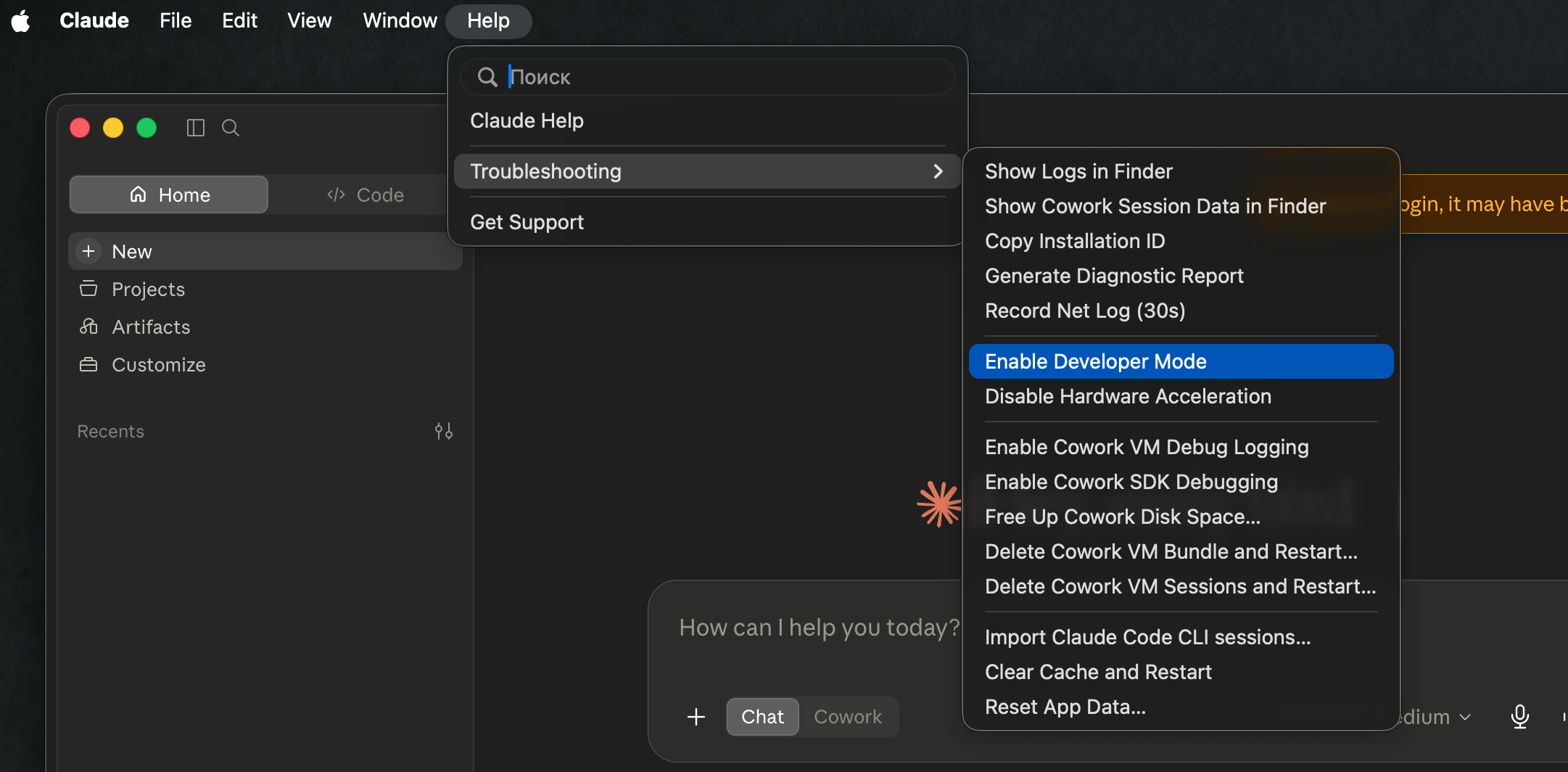
Step 1. Enable Developer Mode.
In the top menu, open Help, go to Troubleshooting, and pick Enable Developer Mode. The option is hidden by default — once you toggle it on, a new Developer menu appears in the top bar.
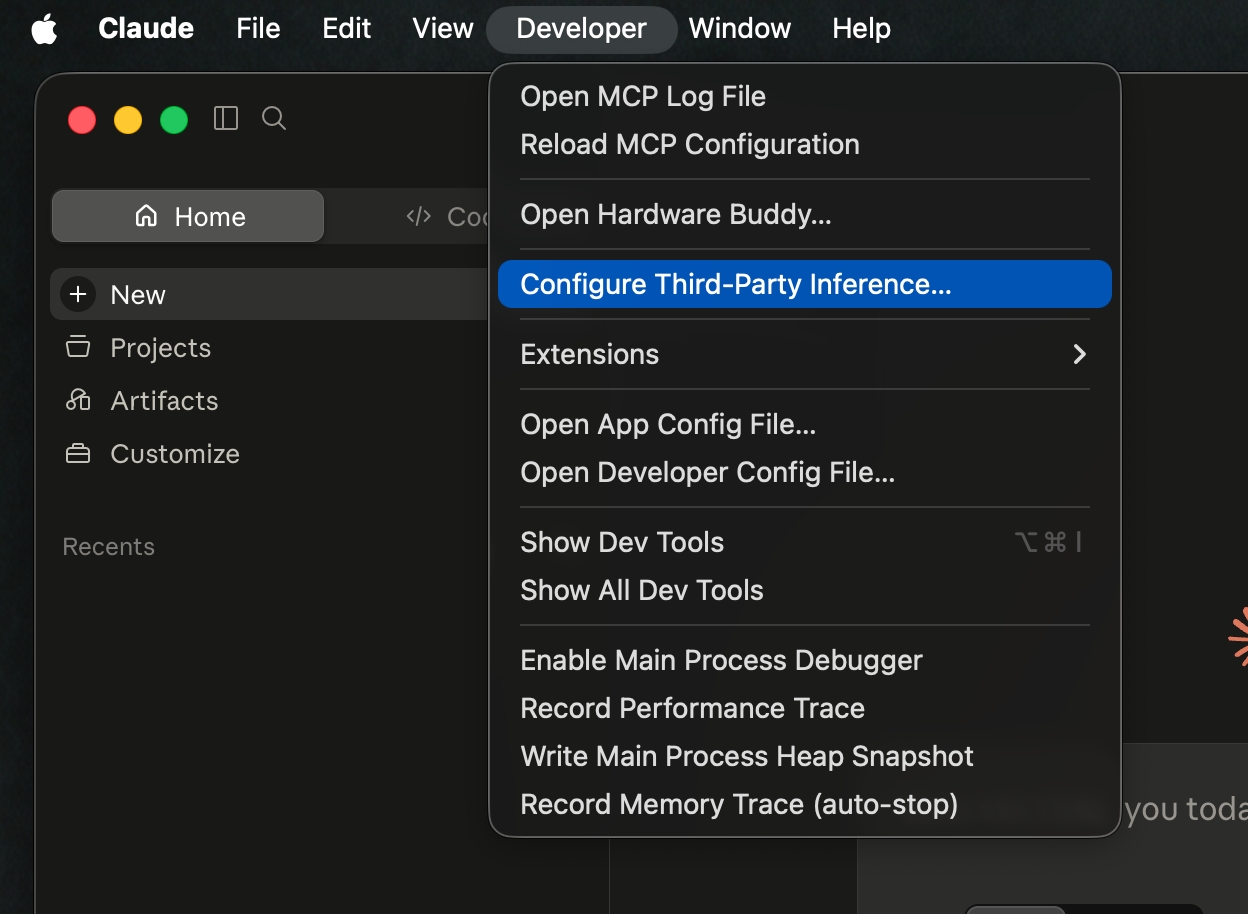
Step 2. Open the third-party inference settings.
Click the new Developer menu and choose Configure Third-Party Inference… — a configuration window opens for plugging in a non-Anthropic provider.
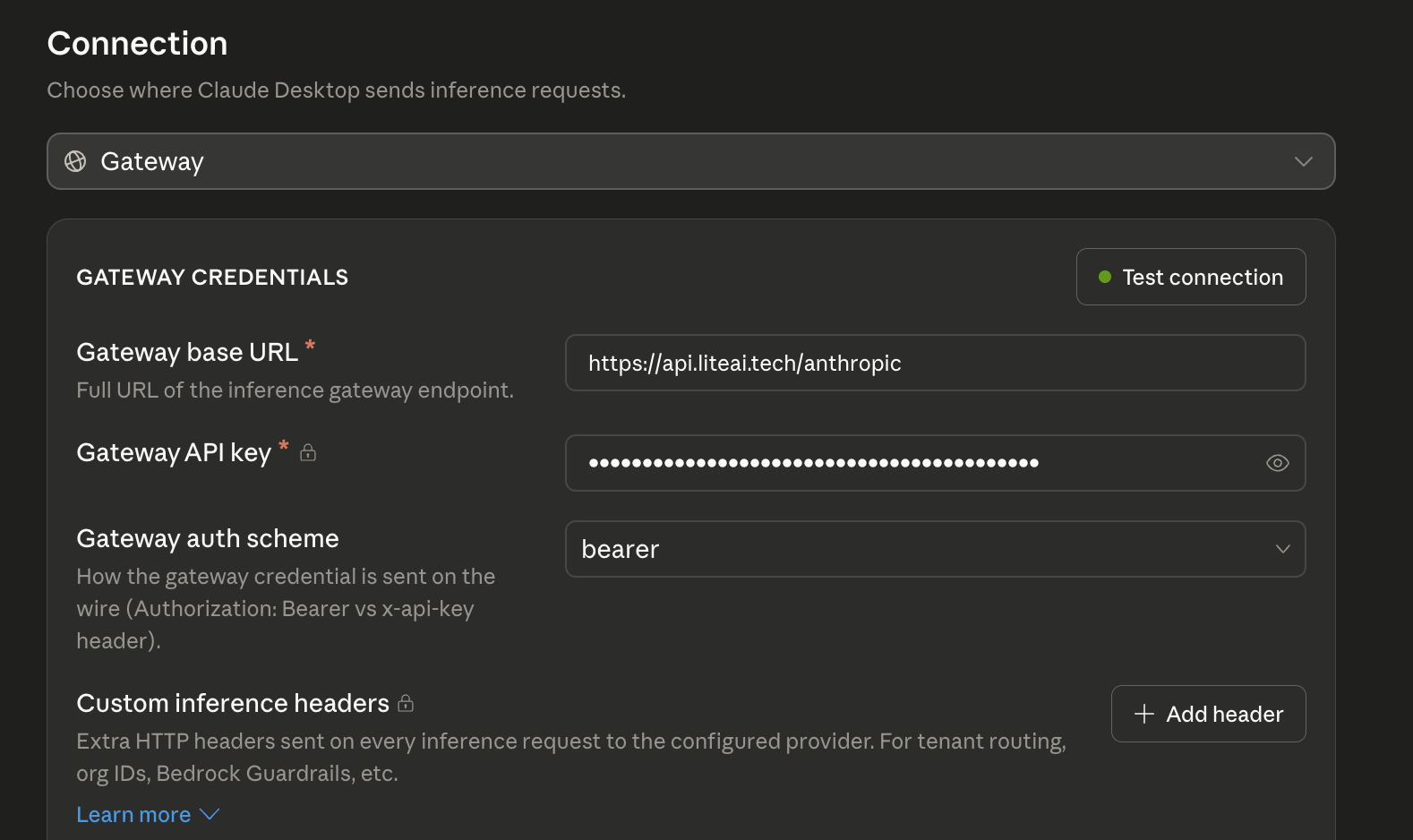
Step 3. Fill in the connection parameters.
In the Connection window, fill the four fields:
| Field | Value |
|---|---|
| Connection type | Gateway (dropdown at the top) |
| Gateway base URL | https://api.liteai.tech/anthropic |
| Gateway API key | your sk-bf-… key |
| Gateway auth scheme | bearer |
In the top-right corner of the settings block there's a Test connection button — click it to make sure LiteAI accepts the key and replies. Once the test passes, save the settings and restart Claude Desktop.
After the restart the desktop routes every request through LiteAI — no JSON file to edit, no syntax mistakes to debug. The same models are available: Opus 4.8, Sonnet 4.6, Haiku 4.5, fable-5.
Windows — config via PowerShell
$configDir = Join-Path $env:APPDATA "Claude"
New-Item -ItemType Directory -Force -Path $configDir | Out-Null
@'
{
  "env": {
    "ANTHROPIC_AUTH_TOKEN": "sk-bf-...",
    "ANTHROPIC_BASE_URL": "https://api.liteai.tech/anthropic",
    "ANTHROPIC_MODEL": "claude-opus-4-8"
  }
}
'@ | Set-Content (Join-Path $configDir "claude_desktop_config.json")
You can do the same thing in plain File Explorer: hit Win+R, type %APPDATA%\Claude, create the claude_desktop_config.json file inside, paste the JSON, save.
After saving, fully quit Claude Desktop (right-click the tray icon → Quit) and launch it again.
Important: the file is sensitive to malformed JSON. If Claude Desktop refuses to start after you edit it, open
claude_desktop_config.jsonin an editor, check for a stray comma at the end of theenvblock, and quit/relaunch the app.
What else you can put in claude_desktop_config.json
The same file is also where you wire up MCP servers — so Claude Desktop can read your Git, Jira, Slack or Notion. Each server is added to the mcpServers array:
{
  "env": {
    "ANTHROPIC_AUTH_TOKEN": "sk-bf-...",
    "ANTHROPIC_BASE_URL": "https://api.liteai.tech/anthropic",
    "ANTHROPIC_MODEL": "claude-opus-4-8"
  },
  "mcpServers": {
    "filesystem": {
      "command": "npx",
      "args": ["-y", "@modelcontextprotocol/server-filesystem", "/Users/you/Documents"]
    }
  }
}
That's a separate topic, but it shows that LiteAI proxying doesn't get in the way of custom MCP servers — they work normally, and the chat hits Claude through our endpoint.
Verify: how to confirm the desktop sees LiteAI
After restarting Claude Desktop:
- Open Settings → Account. The current model should appear (
Claude Opus 4.8by default). - Ask any question in the chat. If you get a reply — it's working. If it says "There was an issue signing you in", check that there are no extra spaces around the
sk-bf-…key inclaude_desktop_config.json. - As a belt-and-suspenders check, run this curl from the same machine:
curl https://api.liteai.tech/anthropic/v1/messages \
  -H "x-api-key: sk-bf-..." \
  -H "anthropic-version: 2023-06-01" \
  -H "content-type: application/json" \
  -d '{
    "model": "claude-haiku-4-5",
    "max_tokens": 128,
    "messages": [{"role": "user", "content": "Reply with the single word: OK"}]
  }'
If you get a response, both the CLI and Desktop will work with the same key.
Which models does Claude Desktop see via LiteAI
After connecting, Desktop pulls the model list through our endpoint — they're all Anthropic-API-compatible:
- claude-opus-4-8 — the flagship. Hard refactors, long reasoning chains, system architecture work.
- claude-opus-4-8-1m — the same Opus with a 1M-token context. Drop an entire repository or a fat PDF into a chat.
- claude-sonnet-4-6 — the daily driver for most tasks. We recommend it as the default.
- claude-haiku-4-5 — the fastest. Good for short questions and drafts.
- fable-5 — the new reasoning flagship (separate plan), great for multi-step instructions.
Switch via the model selector above the input box.
How many tokens does Claude Desktop burn
A typical Claude Desktop session — 30–60 messages of 500–2 000 tokens each. That's around 100K–300K tokens per session (input + output).
At LiteAI's pricing that's:
- 100K → $0.10
- 300K → $0.30
- 1M → $1
Heavier scenarios (large PDFs, long MCP-tool chains) can burn 50K–100K tokens on a single turn, but you see it in your balance — every request updates the counter in the @liteaitech_bot Telegram bot.
If Desktop stubbornly keeps hitting api.anthropic.com
A few common situations and how to fix them:
1. After editing the config, Desktop still shows the "official" reply.
Quit the app fully: on macOS via Cmd+Q, on Windows right-click the tray icon → Quit. Then relaunch. The config is only read at process start.
2. Desktop returns 401 Unauthorized.
Make sure the key was copied with no spaces or line breaks. Open claude_desktop_config.json in an editor and compare the key character-by-character against what's in the Telegram bot.
3. Desktop complains about region or network.
LiteAI doesn't block any IPs, but if you have a global VPN with an exotic exit node, try disabling it or picking a server in Moscow / Amsterdam / Singapore — that usually clears it up.
4. On Windows the path %APPDATA%\Claude doesn't exist.
Create it manually: Win+R → %APPDATA% → Enter → in the Explorer window that opens, create a folder called Claude → inside, create claude_desktop_config.json with any text editor (Notepad, VS Code, Sublime).
Bottom line
Connecting Claude Code and Claude Desktop to LiteAI takes about five minutes on any OS:
- Buy Claude API tokens at $1 per 1M.
- Copy the
sk-bf-…key from the @liteaitech_bot. - Claude Code — set the two env vars or add a block in
~/.claude/settings.json(Win:%USERPROFILE%\.claude\settings.json). - Claude Desktop — create
claude_desktop_config.jsonunder~/Library/Application Support/Claude/(macOS) or%APPDATA%\Claude\(Windows), and put anenvblock withANTHROPIC_BASE_URLandANTHROPIC_AUTH_TOKENinside. **Alternative** via the GUI: **Help → Troubleshooting → Enable Developer Mode**, then **Developer → Configure Third-Party Inference…** withGateway base URL = https://api.liteai.tech/anthropicand your key inGateway API key. - Restart the client — Opus 4.8, Sonnet 4.6, Haiku 4.5 and fable-5 are all available.
No VPN, no foreign card, no per-message chat caps — you only pay for the tokens that actually go through.
See the Documentation page for ready-made configs for opencode, Zed, Cursor, Cline, Kilo Code, Python and the Node SDK — all on the same key.
Ready to try LiteAI?
An API key for 18 AI models — Claude, GPT, DeepSeek, Qwen — in 30 seconds, paid with USDT.